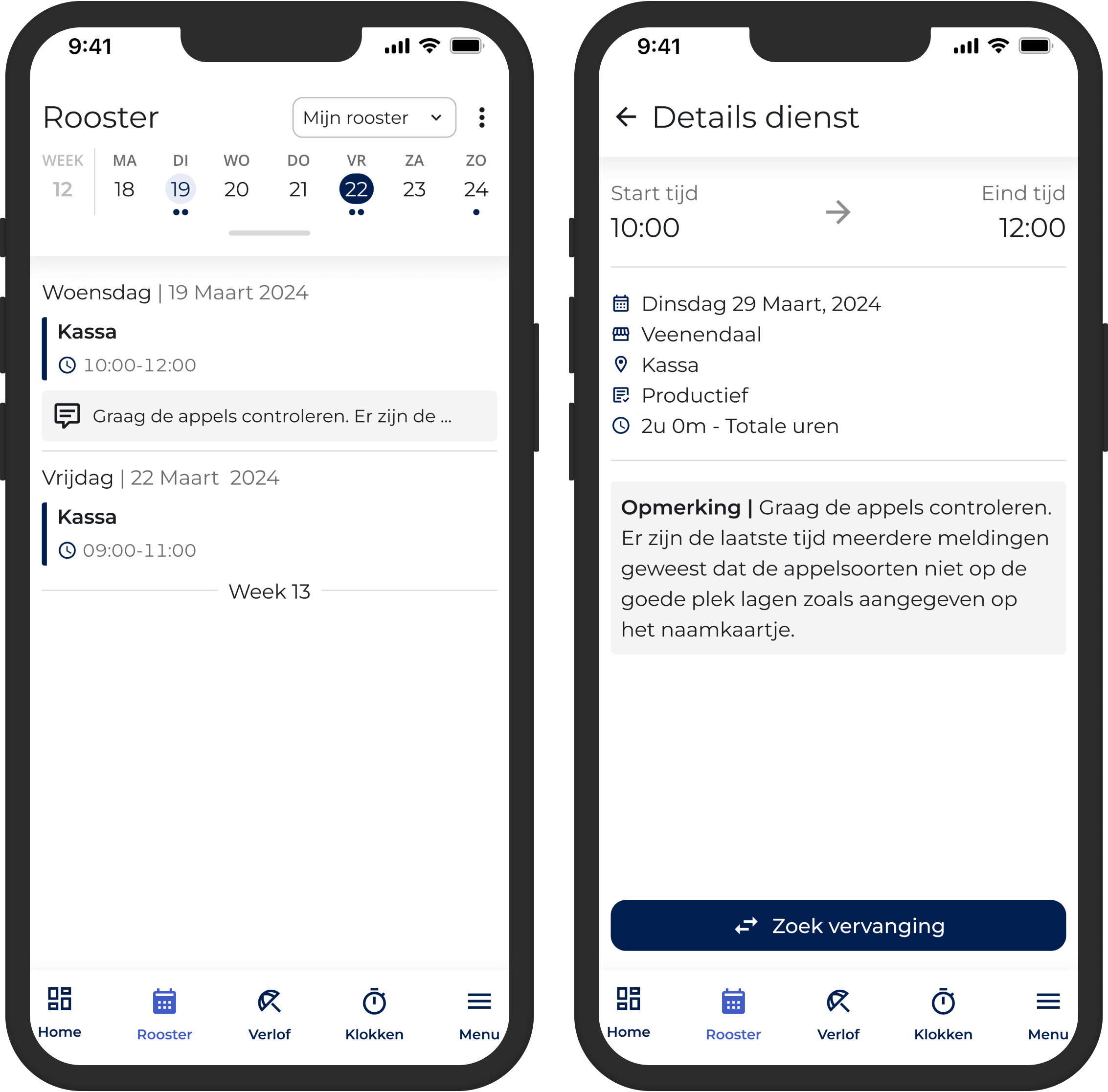
Would you like to let an employee know in advance what is expected of them during their shift? You can do this by adding a comment to the schedule, which will then be visible in the employee's Job App.
Add a Note
You can add a comment on the detail screen of the relevant employee's work schedule. To open this detail screen, double-click the corresponding day in the department work schedule.
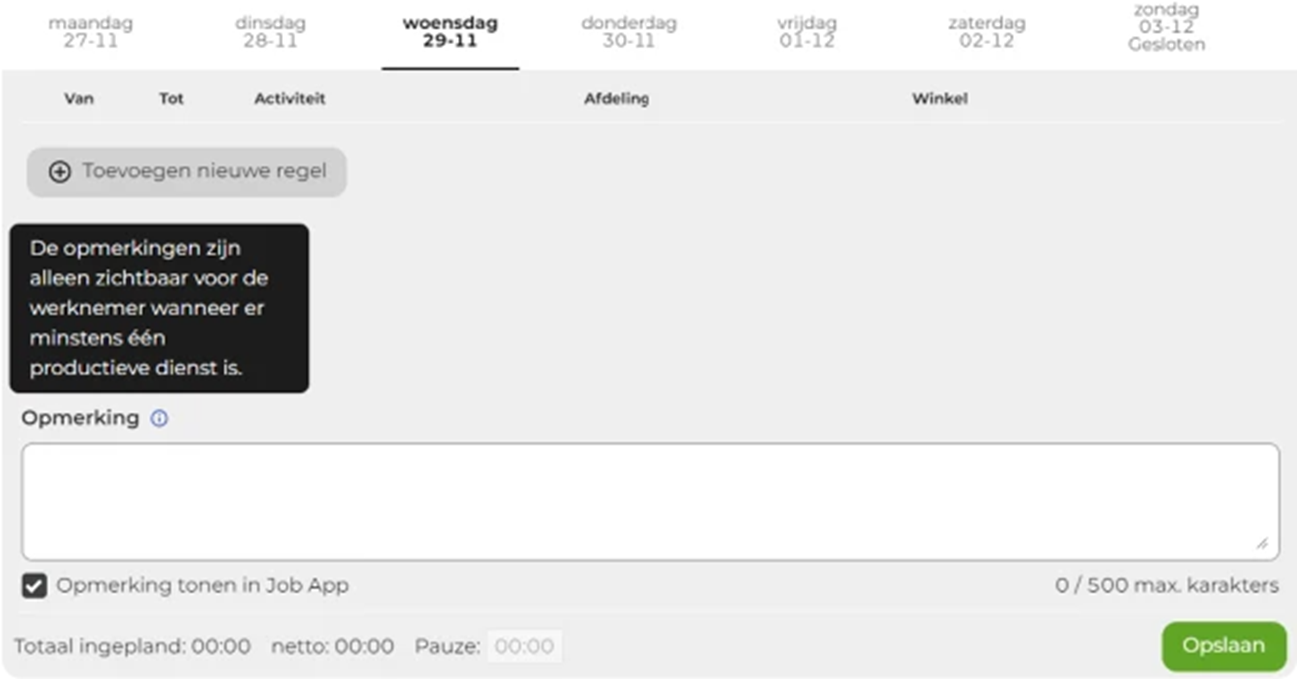
You can enter a comment in the text field, which will be saved after you click“Save.”
Please note that the checkbox next to“Show comment in the Job App” is selected by default. If you add a comment that you do not want to appear in the Job App, deselect it.
Comments are displayed in the Job App only if at least one productive shift or indirect task is scheduled for that employee on that day. If only training, vacation, or sick leave is entered, the comment will not be displayed in the Job App.
In addition, you can only post comments for employees from your own store. Comments will not appear in the Job App for employees hired by another store.
The result
Once you've saved the comment, it will immediately appear on the work schedule, and employees will see the comment again in the job app.