This issue covers duty roster comments, duty roster symbols, and grouping by department in R&R Insights.
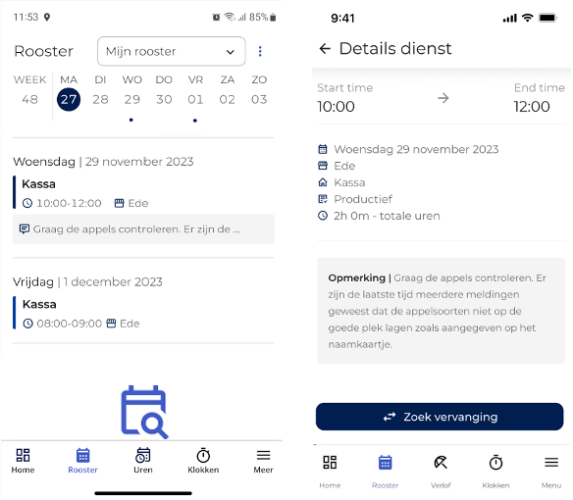
Starting November 20, you'll be able to add comments to the schedule! These comments can be a note to the scheduler or a message to a staff member. The comment will also appear in the duty roster in the Job App.
When you double-click a day in the department schedule, you’ll be taken to the details screen. On this screen, you can now add a comment for the employee. This is a comment at the daily level and is displayed as such in the Job App. Please note that comments are only displayed in the Job App if at least one productive shift or indirect task has been scheduled. If the checkbox below the comment field is not selected, the comment will not be displayed in the Job App.
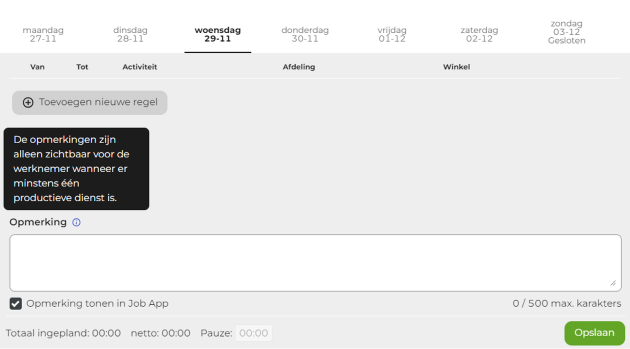
To explain this, we've created an example. In this example, a note is added on a day when an employee isn't scheduled to work, and another note is added the very next day. In the work schedule, we can see at a glance that a note has been added.

The employee now sees only the "Comment of the Day" in the schedule, which lists a shift. This is displayed in the Job App as follows.
Finally, here are a few tips for users:
To view the comments in the work schedule, the latest version of the Job App must be installed on your phone. Therefore, starting Monday, November 20, we will ensure that everyone installs the new version of the Job App. To do this, we will automatically log out any employees who are still using an older version of the Job App the next time they try to access it. When they log in again, they will be prompted to download the latest version.
If the employee has already updated the job app before November 20, they will not notice this and will not be logged out.
The grid is a feature of our software that has been around for a long time. We want our software to remain up-to-date and secure, so changes are sometimes made that, due to technical challenges, may not be exactly the same as before. The reason for this change is that web browsers have implemented additional security measures, which directly affect the icons in the grid. While we’re working on the icons, we’re taking this opportunity to make some minor visual improvements.
We are changing the icon for an indirect task from a black icon with an "i" inside it to a gray icon with an "i" inside it. This makes it easier to distinguish between a productive task and an indirect task.
Currently, a school service displays a red-purple icon with a book inside it and the corresponding time in the same color. This will change to a purple icon with a book, but the text will be displayed in black so that it remains legible.
This is the current view of the icons shown above:

This will be the new display for these symbols:

Visually, all other icons remain the same. Technically speaking, these icons are all being updated to ensure that R&R remains secure and up to date!
In R&R Insights, you’ve long been able to decide for yourself which data to group by. This already makes it easier to compare different stores or different contract types.
Starting now, you can also group data by department only, without this automatically resulting in a grouping by store. This allows you to view the average KPU for all your checkout departments at once.
Do you have any questions about the information above? Please contact us at aftersales@rr-wfm.com .
Would you like to read past newsletters again? You can do so at any time on our website. You can find the archive of our product updates. here.
Sincerely,
Hiska Boelema – Product Owner